How to Use Your Business Page on SabahTravel.com


This guide helps you make the most of your Business Page on SabahTravel.com. Learn how to log in, update your business information, add photos, and see how your page looks to customers.


You will also learn how to share your product links so guests book directly with your company, making it easier to promote your tours and secure confirmed bookings.

Step 1. Updating Your Information

1) Log in to Your Vendor Dashboard

Ensure you are logged in to your vendor account. One email can be used across multiple devices.


2) Access Your Business Page

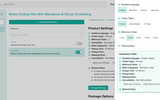
From your dashboard, click on the “Business Page” section.

3) Update Your Business Information

Once redirected, you can:

- Update your company description

- Edit headlines and taglines

- Add banner images

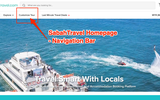
Click the Homepage button to make changes.

Click Preview to see how your page looks

Click Share to share your business page link

Step 2. Utilising Your Business Page

4) View Your Business Page

This is how your business page appears to the public. All products in your inventory will be displayed here.

Click on any product you want to promote or share with guests.

5) Share Your Product Page

When viewing a product on your business page, you can share the direct product link with guests.

How it works:

Guests using your link will automatically book under your company. No other vendor names will appear. This ensures bookings are confirmed directly for you.

Important:

Always make sure the shared UTM link includes your company name.

6) Pro Tip

SabahTravel.com is collaborating with Tourism Malaysia for the Explore Sabah Campaign. Encourage guests to use promo code XPLORE5 to enjoy 5% off all products listed on SabahTravel.com.

Promo validity: Now until 28 February 2026

Quick View

Â